You will need this movie to complete this tutorial
In this tutorial you will create 8 different mouse event handlers to
activate a movie clip. The event handlers will be treated separately here,
although they can work together on the same button in combination.
Event
What
mouse action gets it to work.
press
Reacts
when the mouse button is pressed when the cursor is positioned over
the button.
release
Reacts
when the mouse button is pressed and released when the cursor is over
the button.
releaseOutside
Reacts
when a button as been pressed followed by a drag off the button and
release off the button
rollOver
Reacts
on a simple rollover without a click.
rollOut
Reacts
when the mouse cursor leaves a button.
dragOver
Reacts
when the mouse button is pressed on the button and then dragged off
the button hot spot, followed by dragged ba ck onto the host spot.
dragOut
Reacts
when the mouse button is pressed on the button and then dragged off
the button hot spot.
keyPress
Reacts
when a specified key on your keyboard is pressed. This is case
sensitive.
1. Open your movie. Your movie has 1 layer, 1 frame in the one scene.
There are 8 buttons on the left, each grouped with a name of a mouse event.
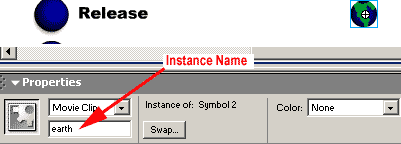
The action we will try to achieve is to get the earth to revolve around the
sun. The earth is a movie clip with a stop in the first frame. The earth
revolves around the sun if it plays. The earth is a named instance on the
stage. As a Movie clip we can name it in the properties inspector when it is
highlighted. The earth here is named "earth"
2.
Click on the first button in front of the press label, to highlight it and
open the Actions panel. The actions panel should have a tital bar that says
Actions - button. The Jump menu should show Actions for Symbol 1 copy
7.
The actions panel should show 2 columns. The left is a list of actions.
From the left:
Click Objects=> Movie=> Movie Clip=> Methods=> Play.
Double click Play to transfer the action to the right. This action is
associated with directing a movie clip to play. Notice a default play script
for the mouse event handler appears in the script box on the right.
3. Click in the object box in the parameters area(1). Here you will point to
the location of the earth movie clip. Click the target below the
object box to select a taget(2). the Insert Target Path dialogue box
appears. Select notation as dots(3). Select mode as absolute(4.) to keep it
simple. click on the earth above to select the named instance earth(5).
Click ok.
4.
Now that the path to the movie clip is set, and action is set to play, you
will need to set your event handler to press, and remove release as the
handler mouse action. Click on the line that says on (release) {. The
options for the event handler for the mouse appear. Uncheck release, and
check press.
5. Click on the second button by the label release. Set up the script for
this button in an identical fashion, substituting the release action for the
event handler.
6, Do the same for each of the following buttons. Set the event handler
up for the appropriate event action for each button. When you get to
the key press, set the key stroke up as the letter e. Save your movie and
publish. You should be successful in viewing the different actions of each
button.





 2.
Click on the first button in front of the press label, to highlight it and
open the Actions panel. The actions panel should have a tital bar that says
Actions - button. The Jump menu should show Actions for Symbol 1 copy
7.
2.
Click on the first button in front of the press label, to highlight it and
open the Actions panel. The actions panel should have a tital bar that says
Actions - button. The Jump menu should show Actions for Symbol 1 copy
7.

 4.
Now that the path to the movie clip is set, and action is set to play, you
will need to set your event handler to press, and remove release as the
handler mouse action. Click on the line that says on (release) {. The
options for the event handler for the mouse appear. Uncheck release, and
check press.
4.
Now that the path to the movie clip is set, and action is set to play, you
will need to set your event handler to press, and remove release as the
handler mouse action. Click on the line that says on (release) {. The
options for the event handler for the mouse appear. Uncheck release, and
check press.