 Using Load movie in Template Creation Using Load movie in Template Creation
 1.
Unzip and save the folder and its contents on your hard drive. This file
contains a folder with several swf movies in it and one fla. The one fla is
just the framework for a template. Each swf file represents a page contents
in the template. 1.
Unzip and save the folder and its contents on your hard drive. This file
contains a folder with several swf movies in it and one fla. The one fla is
just the framework for a template. Each swf file represents a page contents
in the template.
2. Click File=> open. Browse to your LoadMovie folder. Select
loadmovie1.fla from the folder.

 3.
Your timeline consists of one frame in a background layer (locked) with the
framework of your template and one frame on a navigation layer which has
your buttons which you will script in this tutorial. Test your movie and you
will see that there is just the framework in this movie. Click on the home
button. Open your action panel. 3.
Your timeline consists of one frame in a background layer (locked) with the
framework of your template and one frame on a navigation layer which has
your buttons which you will script in this tutorial. Test your movie and you
will see that there is just the framework in this movie. Click on the home
button. Open your action panel.
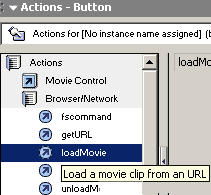
Select actions=> Browser/Network=> LoadMovie.
Double click loadMovie.
 4.
For the URL of the movie, we need to type in main.swf which is a movie
located in the same folder you downloaded. For the location, we will put it
on a level, set it to level 10. Levels are available for layering movies
over your background when you play a movie. It is analagous to layers, yet
this works when you load movies. 10 is above 0, where level 0 is your stage. 4.
For the URL of the movie, we need to type in main.swf which is a movie
located in the same folder you downloaded. For the location, we will put it
on a level, set it to level 10. Levels are available for layering movies
over your background when you play a movie. It is analagous to layers, yet
this works when you load movies. 10 is above 0, where level 0 is your stage.
 5.
Select the Listings button. Open your actions panel. Add the load
movie action. Set the url to listings.swf, at level 10. By setting this on
the same level as main, level 10, the movie will first unload the
main.swf, and then load listings.swf. 5.
Select the Listings button. Open your actions panel. Add the load
movie action. Set the url to listings.swf, at level 10. By setting this on
the same level as main, level 10, the movie will first unload the
main.swf, and then load listings.swf.
6. Do the same for the directory, contact, and about buttons, setting the
URL to the appropriate swf file in the folder, and the level at 10.
7. Test your movie. As long as the swf files are in the same folder as
the loadmovie1.fla, it will successfully load in the new movies(pages).
You can also load movies using an absolute URL,
http://www.yourdomain.com/falsh/main.swf. You may want to try that out.
|




