1. Open the Movie, onionskining.fla. Change the background of the movie
to a light blue.
2. Select the Biker layer frame 1. Select the Type tool. Set the type
tool for the following:
Static
Font= Athletes
Size = 75
Black
3.
Click your cursor on the left side of your stage. Type in a Capitol X. Click
Modify=> break apart
4.
Select your transform tool and rotate your image slightly counter clockwise
so that the wheels meet. the dark brown ground. you may need to turn snap
5.
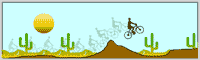
Click on Frame 2 and hit F6 to add a keyframe. This will copy the contents
of the first keyframe into a new keyframe. Turn on your onion skin by
clicking the button under the timeline. Use onion skinning to view the
shadow of the biker from frame 1 when you move frame 2.
You
may want to drag the right handle of the onion skin to frame 30 and click
the onion skin. When you are done movings the onion skin marker handles,
click on the button for modify onion skin and select Anchor Onion. This is
keep the onion skin over the animation frames you are working on.
Use
your move tool to reposition the biker so the biker in frame 2 is just ahead
of frame 1. Use the transform tool to rotate the biker if need be so that
the wheels stay on the ground.
6.
Click on Frame 3 and hit F6 to add a keyframe. MOve your biker to the right
with your move tool. You can also use your keyboard arrows. The arrows will
nudge the image to where you want. shift + arrow will nudge about 10X as
far. Use your transform tool to rotate the biker so his wheels stay on the
ground.
7.
Click on frame 4 and hit F6. Move your biker and rotate him so he is ahead
of the last frame, evidenced by the onion skinning. 8.
Click on frame 5 and hit F6. Move your biker and rotate him so he is ahead
of the last frame.. 8.
Click on frame 6 and hit F6. Move your biker right and rotate him so he is
ahead of the last frame.. 9.
Click on frame 7 and hit F6. Move your biker and rotate him so he is ahead
of the last frame. 10
Insert a keyframe(f6) on frame 8. This time your biker is sailing in the air
over the hill. Move and rotate him.
11. Continue through the frames till your biker is safely back on the ground
and off screen.You can use 29 frames total of the movie to make him go from
left to right. The 30th frame is reserved for the rest.
12. When your biker is off the screen, go back to frame 1 of the biker
layer. Hit F5 to insert a frame to elongate the first keyframe. Follow this
with F6. Your cursor will land on frame 2, with frame 1 and 2 being separate
keyframes, of the same contents. Click back on frame 1. Move your biker to
the left so all you see if the front wheel of the bike as it enters your
vision.
13. Save your movie and publish! Don't worry! The onion skin is for edit
only! It will not show up in your published movie!






 3.
Click your cursor on the left side of your stage. Type in a Capitol X. Click
Modify=> break apart
3.
Click your cursor on the left side of your stage. Type in a Capitol X. Click
Modify=> break apart 4.
Select your transform tool and rotate your image slightly counter clockwise
so that the wheels meet. the dark brown ground. you may need to turn snap
4.
Select your transform tool and rotate your image slightly counter clockwise
so that the wheels meet. the dark brown ground. you may need to turn snap
 5.
Click on Frame 2 and hit F6 to add a keyframe. This will copy the contents
of the first keyframe into a new keyframe. Turn on your onion skin by
clicking the button under the timeline. Use onion skinning to view the
shadow of the biker from frame 1 when you move frame 2.
5.
Click on Frame 2 and hit F6 to add a keyframe. This will copy the contents
of the first keyframe into a new keyframe. Turn on your onion skin by
clicking the button under the timeline. Use onion skinning to view the
shadow of the biker from frame 1 when you move frame 2.
 You
may want to drag the right handle of the onion skin to frame 30 and click
the onion skin. When you are done movings the onion skin marker handles,
click on the button for modify onion skin and select Anchor Onion. This is
keep the onion skin over the animation frames you are working on.
You
may want to drag the right handle of the onion skin to frame 30 and click
the onion skin. When you are done movings the onion skin marker handles,
click on the button for modify onion skin and select Anchor Onion. This is
keep the onion skin over the animation frames you are working on. Use
your move tool to reposition the biker so the biker in frame 2 is just ahead
of frame 1. Use the transform tool to rotate the biker if need be so that
the wheels stay on the ground.
Use
your move tool to reposition the biker so the biker in frame 2 is just ahead
of frame 1. Use the transform tool to rotate the biker if need be so that
the wheels stay on the ground. 6.
Click on Frame 3 and hit F6 to add a keyframe. MOve your biker to the right
with your move tool. You can also use your keyboard arrows. The arrows will
nudge the image to where you want. shift + arrow will nudge about 10X as
far. Use your transform tool to rotate the biker so his wheels stay on the
ground.
6.
Click on Frame 3 and hit F6 to add a keyframe. MOve your biker to the right
with your move tool. You can also use your keyboard arrows. The arrows will
nudge the image to where you want. shift + arrow will nudge about 10X as
far. Use your transform tool to rotate the biker so his wheels stay on the
ground.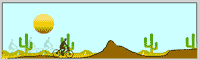 7.
Click on frame 4 and hit F6. Move your biker and rotate him so he is ahead
of the last frame, evidenced by the onion skinning.
7.
Click on frame 4 and hit F6. Move your biker and rotate him so he is ahead
of the last frame, evidenced by the onion skinning.  8.
Click on frame 5 and hit F6. Move your biker and rotate him so he is ahead
of the last frame..
8.
Click on frame 5 and hit F6. Move your biker and rotate him so he is ahead
of the last frame..  8.
Click on frame 6 and hit F6. Move your biker right and rotate him so he is
ahead of the last frame..
8.
Click on frame 6 and hit F6. Move your biker right and rotate him so he is
ahead of the last frame..  9.
Click on frame 7 and hit F6. Move your biker and rotate him so he is ahead
of the last frame.
9.
Click on frame 7 and hit F6. Move your biker and rotate him so he is ahead
of the last frame. 10
Insert a keyframe(f6) on frame 8. This time your biker is sailing in the air
over the hill. Move and rotate him.
10
Insert a keyframe(f6) on frame 8. This time your biker is sailing in the air
over the hill. Move and rotate him.