1. Open a new movie and save it as randomplacement.fla.
2. Rename layer 1 "x Marks the spot
3. Select your type tool. Set the type to the following and Type in the
letter X anywhere.
Static
Times New Roman
48 pt
Black
4.
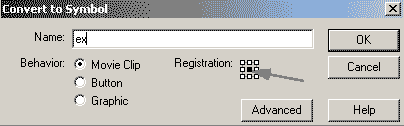
Select your move tool and highlight the text on the stage with one click.
Click Insert=> Convert to symbol (F8). Call the symbol ex, set it to the
properties of a movie clip and set the registration point in the center of
the symbol.
5.
Use your arrow tool to highlight the X on the stage if it is not already
highlighted. Open the property inspector and name the instance ex.
6. Click in frame 36 and hit your F5 key to extend the keyframe out to
36. 36 frames at 12 frames per second is 3 seconds time (36/12 = 3), at
which time we will have the movie loop and play again.
7.
Click the button on the bottom of the layers panel to add a layer. Call the
new layer Actions.
8. Click in frame 1. Open your actions panel.
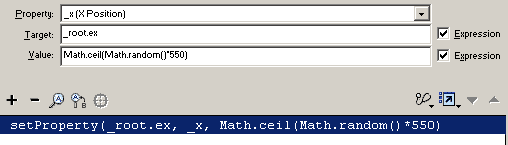
9. Click Actions=> Movie Clip Control=> SetProperty. Click the Drop down
menu for the property parameter. Select _X (X Position). _X is the
horizontal position.
10.
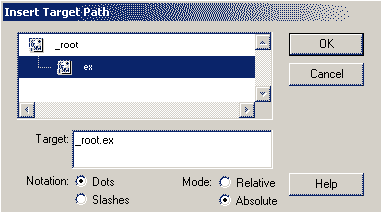
Click in the target parameter field. Click the target button
below. Set
the notation to dot, and the mode to absolute, select the instance name
"ex", and click ok.
Check the box for expression.
11. Click in the Value parameter box. Here is where we will set a random
whole number location. When your cursor is in the value box, click on the
action tool box on the left
Objects=> Core=> Math=> Methods=> Ceil
and
double click on ceil to add the script to the box. Click inside the brackets
after Math.ceil(). Click on the following action tool box path and double
click.
Objects=> Core=> Math=> Methods=> Random
With the cursor still within the ceil brackets but after the random(),
Add a multiplier which will give the random number a number between 1 and
550, or the width of the stage. To do this, add a *550. Since the Math
statements must be evaluated to be used, you must check expression.
12. Test your movie. You will see that every 3 seconds your x moves to a
new horizontal position. When you are done previewing, go back to edit your
movie.
13. Now that you have the horizontal random placement, try adding the
script line under that one to move the verticle position (_y). Make sure you
check the multiplier for random against your movie height (400).
You are well on your way to random actions. The next tutorial will be on limiting the range of the random number.






 4.
Select your move tool and highlight the text on the stage with one click.
Click Insert=> Convert to symbol (F8). Call the symbol ex, set it to the
properties of a movie clip and set the registration point in the center of
the symbol.
4.
Select your move tool and highlight the text on the stage with one click.
Click Insert=> Convert to symbol (F8). Call the symbol ex, set it to the
properties of a movie clip and set the registration point in the center of
the symbol.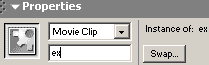 5.
Use your arrow tool to highlight the X on the stage if it is not already
highlighted. Open the property inspector and name the instance ex.
5.
Use your arrow tool to highlight the X on the stage if it is not already
highlighted. Open the property inspector and name the instance ex.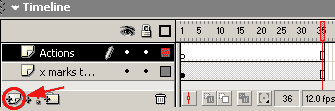 7.
Click the button on the bottom of the layers panel to add a layer. Call the
new layer Actions.
7.
Click the button on the bottom of the layers panel to add a layer. Call the
new layer Actions.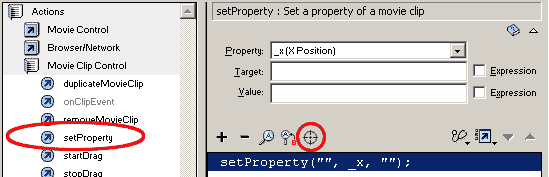
 10.
Click in the target parameter field. Click the target button
10.
Click in the target parameter field. Click the target button
 below. Set
the notation to dot, and the mode to absolute, select the instance name
"ex", and click ok.
below. Set
the notation to dot, and the mode to absolute, select the instance name
"ex", and click ok.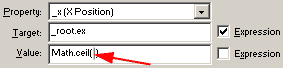 and
double click on ceil to add the script to the box. Click inside the brackets
after Math.ceil(). Click on the following action tool box path and double
click.
and
double click on ceil to add the script to the box. Click inside the brackets
after Math.ceil(). Click on the following action tool box path and double
click.