Setting Global Page properties
Global page properties are those that are the same for the entire page.
Background, title, metatags are all page properties. Global page
properties will affect all areas of the page that have no specific
settings to override them. This tutorial will review the basic options
that you will want to set in Front page 2002.
1. Right click on your document and select page properties.
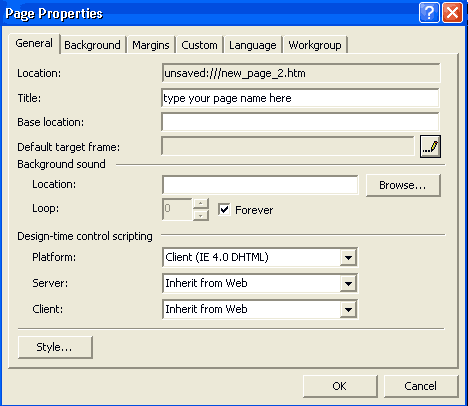
2. TITLE
On the General tab you should enter a Title of your page.
3. TARGET
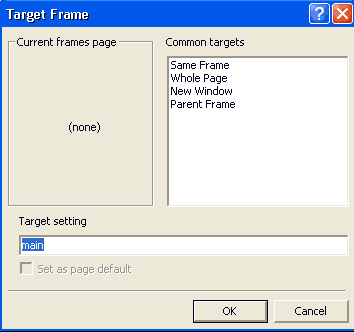
If you are using frames, you may want to select the target frame which
you want all links to load in. Click the
 to set the target of your links.
Tip: If you set the target frame for Whole Page (_top) even
though your pages are not in frames, this will make all your links load in
a full window and will pull your page out of an unwanted frameset.
-
Same frame: replace the current page being viewed in that frame.
-
Whole page will replace all frames in the browser
-
New Window will spawn a new window with the page opening in the new window
-
Parent frame will replace the current page however it is viewed. If it was
in a frame, it will put it there. If it was the full frame, it will put it
there.
Tip: When I use framesets, I often name the frame where I want the
pages to load as "main" and target my main frame.
Make your changes and click ok.
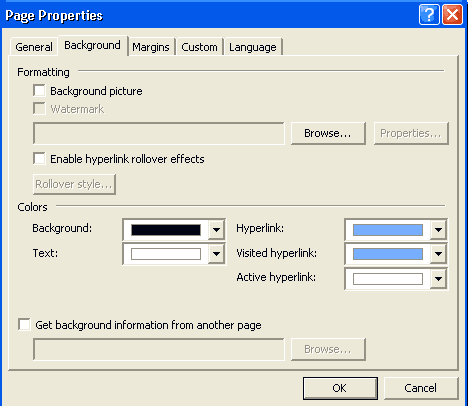
Click on the background tab. Set the following:
-
Background picture- an image that will tile across your background
to fill all the space.
-
Watermark is available when you select an image. THis will make the
background stationary in that it will not scrill with the page text.
4.
-
Enable hyperlink rollover effects will set simple rollovers for
your hyperlinks. selections made here will be displayed when a hyperlink
is rolled over. choose the style fromthe button after selecting this
option.
-
Background color-
TIP: Background colorshould always be close to the background
picture page
-
Text color should contrast with your color for best viewing.
-
Hyperlink text color is for the unvisited hyperlink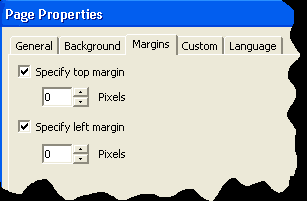
-
visited hyperlink will change the color of a link if you have
visited it.
-
Active hyperlink will change the color of the link while visiting
it.
5. Margins
Web pages default with a top and side margin. If you want your images
a certain distance from these sides, set the margins here. In this case, I
set the top margin equal to 0 and the left margin equal to zero so my
images and tables will butt up to the sides.
6.
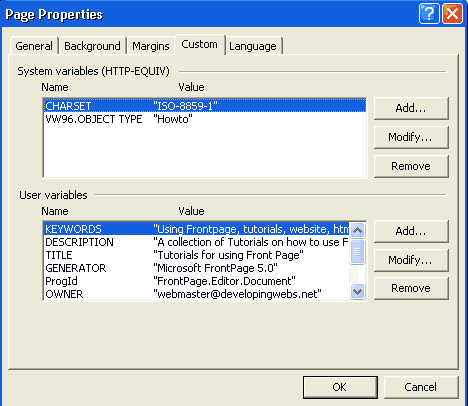
Custom
This is where you set all the Meta Tags. This is for the advanced user who
would like to prepare and submit the page to a search engine. In order to
add the meta tags here you will need to know what search engines are
looking for. This is why most users will add meta tags created from a meta
tag wizard like this one DEVELOPING WEBS
METATAG GENERATOR since the choices are set out and it is easy to use
and add to a page.
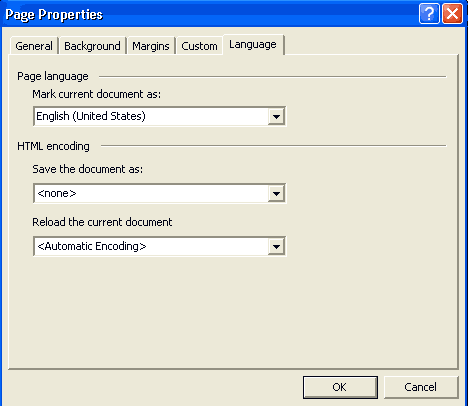
7.
Language
The language tab allows you to set the default language for the page.