This tutorial walks you through adding a MouseOver
Image Java Script Menu to your page. Mouseover java script is where you
rollover the image with the mouse and it swaps the image for another.
EXAMPLE:

1. Create a folder on your hard drive.
2. Place your before rollover and on rollover
images in this folder. For this example, the
before rollover image is here. The on
rollover image is here. Right click on the image and select save as.
Save this in your new folder.
Right click on the image and select save as.
Save this in your new folder.
3. Open up a notepad document. Insert the following
code that is the basic page layout
- highlighting all of the text,
- right click on it while highlighted
- select copy
- Plant your cursor in the notepad
- click edit paste.
4. Now open the
mouse rollover generator page
by clicking this link.
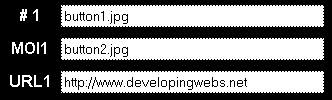 5.
Type in the names of your images just as you saved them. Make button1.jpg
your before image(#1) and button2.jpg your mouseover image (MOI). Put a link
URL in the third box. This completes the set for the first button.
Additional buttons can be added by typing in additional blanks. If the URL
is left blank, there will be no link created, just a mouseover.
5.
Type in the names of your images just as you saved them. Make button1.jpg
your before image(#1) and button2.jpg your mouseover image (MOI). Put a link
URL in the third box. This completes the set for the first button.
Additional buttons can be added by typing in additional blanks. If the URL
is left blank, there will be no link created, just a mouseover.
 6.
At the bottom of the form click the button that says Done!
6.
At the bottom of the form click the button that says Done!
7. In the bottom box is your script. Copy the part
that is intended for the head of your doc into the area on your notepad that
says <!-- insert head part of code in space below -->
- highlighting the text intended for the head
of your HTML,
- right click on it while highlighted
- select copy
- Plant your cursor in the notepad exactly
where indicated
- click edit paste.
8. Copy the part that is intended for the body of your
doc and paste into your doc after where it says <!-- insert body part of
code in space below -->
- highlighting the text intended for the body
of your document,
- right click on it while highlighted
- select copy
- Plant your cursor in the notepad
- click edit paste.
9. Save this notepad to the same folder with your
images using Save As and call it rollover.html . Use the
instructions to saving notepad information as html
here if need be.
10. Open the folder when you saved the images and the
HTML file. Double click the file called rollover.html and there is your
working rollover.




