Navigating your image: Zoom In ; Zoom Out
Quick zooming in and out can be important in navigating through your
artwork. In this tutorial we will explore some of the ways to zoom in and
out. Zoom Tool
1. The Zoom Tool
 is used to
zoom in and out. Hit your Z key to select your zoom tool. Click on your
image. Where you click will be centered and zoomed in. is used to
zoom in and out. Hit your Z key to select your zoom tool. Click on your
image. Where you click will be centered and zoomed in.
2. With the Zoom tool active, hold your ALT key and click on your image.
You will find your image will zoom out on the area you clicked. 3. Double
click the zoom tool to set your image at 100% magnification. 4. Click
drag a marquee around an area of your image. This will zoom in on that
area.
5. Double click the zoom tool again.
Keyboard Shortcuts for Zooming
1. Activate a different tool, say the selection tool. When you are using
a tool, or involved in a procedure it can be quite handy to momentarily
switch tools without deactivating your current tool. 2. Hold your control
key and click the = sign. This will magnify your image, centering on the
same center point. Repeat several times. 3. Hold your control key and
click the - sign key. This will zoom your image out. repeat this. 4.
Hold your control key and click the number 1 key. This will set your image
to 100% magnification.
Scrolling through Document
1. Select your Hand tool, H.
 Click drag on your image. The hand tool will allow you to navigate through
your image, centering where you need to work.
Click drag on your image. The hand tool will allow you to navigate through
your image, centering where you need to work. 2. Select your selection
tool. Now hold your space bar down, and watch your cursor change to the
hand tool, where you can navigate around your image while still in the
selection tool.
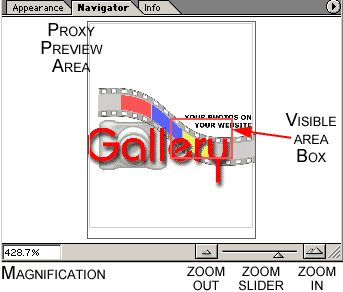
3. Open The navigator palette. In the default layout, it is nested in the top set of palettes, however you can find it by clicking window=> navigator.
4. The slider on the bottom can be used to adjust the magnification up or down. The text box displays the magnification and can be typed in followed by the enter key to adjust magnification.
5. On either side of the zoom slider is a zoom in and zoom out button. Click them and watch as your artboard zooms in and zooms out.
6. The visible area box represents what is visible on your artboard. You can move it around or even hold your ctrl key and click drag to marquee right on the navigator proxy preview giving a new visible area box..
More
1. Double click the hand tool to fit to screen.
|







