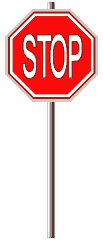
 Working
With Simple Shapes Working
With Simple Shapes
1. Open a new image. Set your default colors.
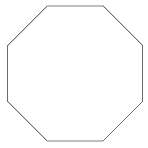 2.
Select your Polygon tool from your tool bar. The polygon tool is nested
with the rectangle tool (m). Click in the center of your artboard and
drag out. While dragging, use the up and down arrows on your keyboard to
adjust the number of sides of the polygon until you have 8 sides. When
you get 8 sides, hold down your shift key to constrain the polygon so
that the bottom is flat. Release your mouse button. 2.
Select your Polygon tool from your tool bar. The polygon tool is nested
with the rectangle tool (m). Click in the center of your artboard and
drag out. While dragging, use the up and down arrows on your keyboard to
adjust the number of sides of the polygon until you have 8 sides. When
you get 8 sides, hold down your shift key to constrain the polygon so
that the bottom is flat. Release your mouse button.
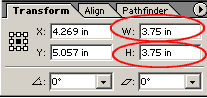 3.
While the octagon shape is highlighted, open your transform panel by
clicking window=> transform. Set the height and width to 3.5 inches each
and hit enter when you have changed the height and width to apply it. 3.
While the octagon shape is highlighted, open your transform panel by
clicking window=> transform. Set the height and width to 3.5 inches each
and hit enter when you have changed the height and width to apply it.
 4.
While the octagon is still highlighted, set the fill color to a dark red
or maroon, hex #990000. Set the stroke color to a light grey, hex #CCCCCC. 4.
While the octagon is still highlighted, set the fill color to a dark red
or maroon, hex #990000. Set the stroke color to a light grey, hex #CCCCCC.
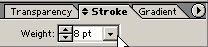 5.
Click window=> stroke to view the stroke panel. Ser the stroke to 8. 5.
Click window=> stroke to view the stroke panel. Ser the stroke to 8.
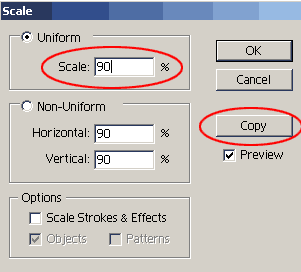 6.
Double click the scale tool to bring up scaling options. Select Uniform
and type in 90% and click copy!. 6.
Double click the scale tool to bring up scaling options. Select Uniform
and type in 90% and click copy!.
7. On the new smaller rectangle, set the fill to bright red and the
stroke to white.
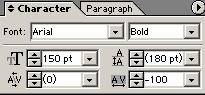 8.
Select your Type tool. Type in the word STOP. Click type=> Size=> other
to bring up the character palette. Set the font to Ariel. Type in the
size as 150. Set the tracking to -100 and hit enter. 8.
Select your Type tool. Type in the word STOP. Click type=> Size=> other
to bring up the character palette. Set the font to Ariel. Type in the
size as 150. Set the tracking to -100 and hit enter.
9. While your text is still highlighted, Set the fill to white and
the stroke to dark red, hex #990000.
10 Click on your selection tool. Move your text to the center of your
Stop Sign. Deselect all.
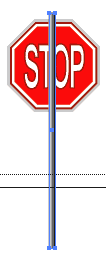
11. Set your default colors of black stroke and whit fill. Click the
gradient button below the color palette. Select your rectangle shape
tool. Draw a tall narrow rectangle starting above the octagon and going
far below the octagon for the pole.
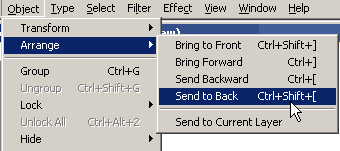 12.
The pole appears in the foreground. While it is still highlighted, Click
Object=> arrange=> Send to back. 12.
The pole appears in the foreground. While it is still highlighted, Click
Object=> arrange=> Send to back.
13. If your image hangs off the edge of the artboard, Use your
selection tool to put a marquee around all the items on the artboard.
Drag them back up. |







