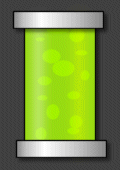
 Slime Turorial Slime Turorial
by Cengx1
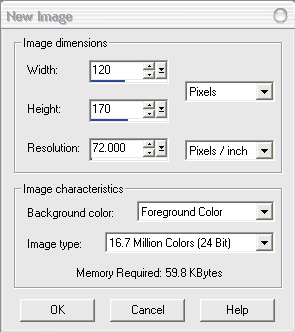 1.Create a new image File>>New and set your background
to #404040 and your size to 170x120 1.Create a new image File>>New and set your background
to #404040 and your size to 170x120
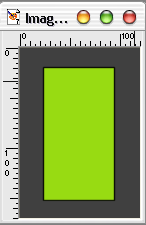 2. Now go to the preset shapes tool 2. Now go to the preset shapes tool
 and select the normal rectangle form the menu and set the fill colour
to #98DB12 and stroke colour to Black. Now draw a rectangle
in the center of the image.
and select the normal rectangle form the menu and set the fill colour
to #98DB12 and stroke colour to Black. Now draw a rectangle
in the center of the image.
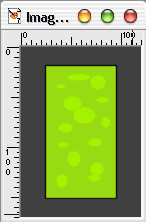 3. For this step you need to go to the preset shapes tool again
and select elipse and set your fill colour to #A3F200 and deactivate
your stroke colour. Now draw the bubbles in your slime. 3. For this step you need to go to the preset shapes tool again
and select elipse and set your fill colour to #A3F200 and deactivate
your stroke colour. Now draw the bubbles in your slime.
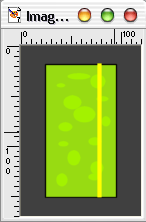
4. Now to give the tube its shine create a new layer and call
it yellowshine draw a yellow line 4 wide down the left side of the
container. Go to Effects>>Blur>>Gaussian Blur and set
the radius to 6
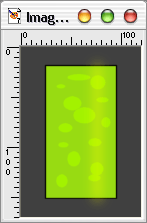
 Repeat the process this time with a white line on the left site
and a blur radius of 5.5 Repeat the process this time with a white line on the left site
and a blur radius of 5.5
5. In this step we will creat the end caps that on on both ends
of your container of slime. Set your stroke colour to black and
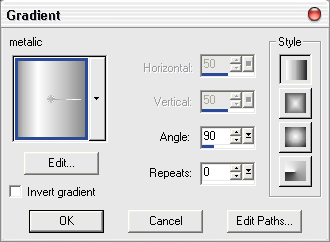
your fill colour to metalic gradient and set the angle to 90.
 Create a new layer and call it caps. Draw a rectangle at both
ends of your container Create a new layer and call it caps. Draw a rectangle at both
ends of your container
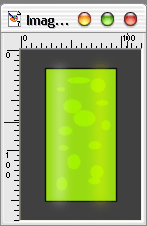
6. For the final step we need to add a drop shadow on the layer
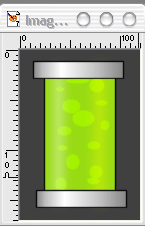
with the caps and the layer with the slime. This is what the finished
image will look like.
|




