
Wire Tutorialby Cengx1
This tutorial will teach you how to make realistic
lookin wires for your interfaces.
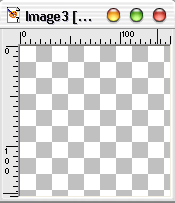 1.Open a new image File>>New and set the
size to 150x150 with a transparent background 1.Open a new image File>>New and set the
size to 150x150 with a transparent background
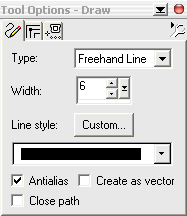  2. Select the draw tool, set the type to Freehand
Line and the width to 6. 2. Select the draw tool, set the type to Freehand
Line and the width to 6.
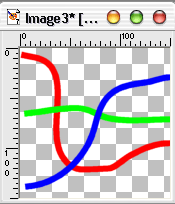 3. Select a colour for your wire and draw it (Note:
If you use more than one wire and they cross over eachother each
wire must be on a separate or they will merge when you apply the
following effects.) 3. Select a colour for your wire and draw it (Note:
If you use more than one wire and they cross over eachother each
wire must be on a separate or they will merge when you apply the
following effects.)
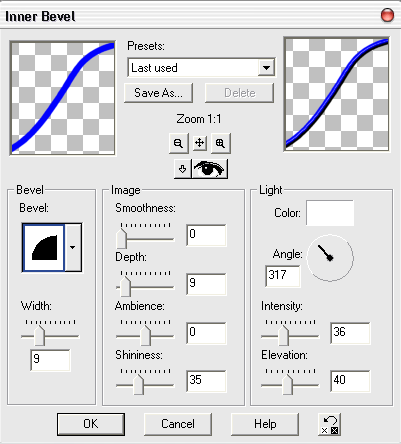 4. As you can see our wires are looking a little
bit flat and unrealistic, to remedy this wil will add an inner bevel,
Effects>> 3D Effects>>Inner Bevel.set it to the folowing
propertys if you have used more than one wire you must do it for
each individual wire. 4. As you can see our wires are looking a little
bit flat and unrealistic, to remedy this wil will add an inner bevel,
Effects>> 3D Effects>>Inner Bevel.set it to the folowing
propertys if you have used more than one wire you must do it for
each individual wire.
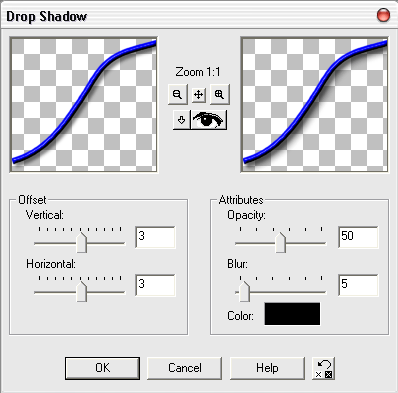 Also to give the wire more depth use a drop shadow Effects>>
3D Effects>>Drop shadow with the following settings. Again
this must be done for all of your wires Also to give the wire more depth use a drop shadow Effects>>
3D Effects>>Drop shadow with the following settings. Again
this must be done for all of your wires
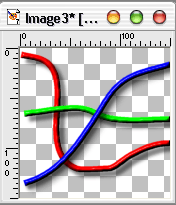 Your finished image should look something like this. Your finished image should look something like this.
|




